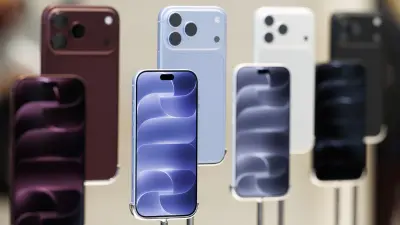
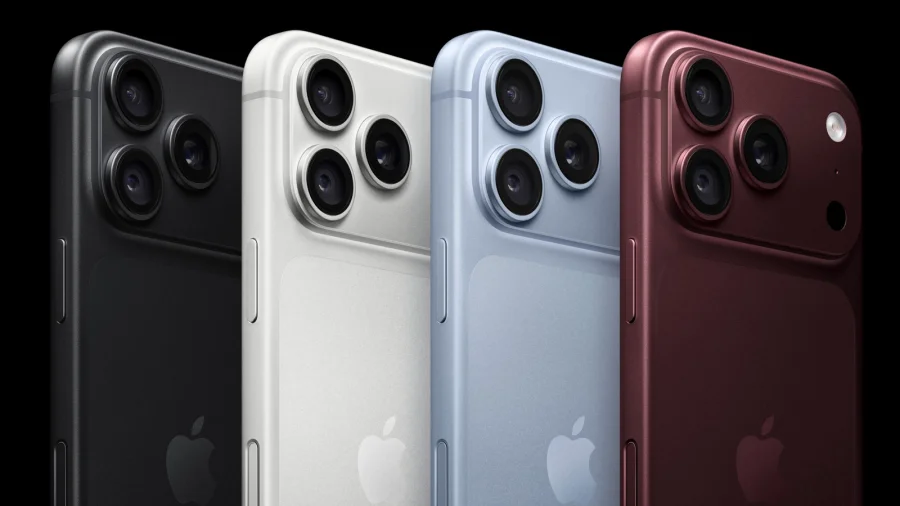
There's a button on the side of your iPhone that most people press once, watch the camera open, and then never think about again. That's the problem. Camera Control was built to be more than a shutter — it's meant to be the fastest way you interact with your camera. And almost nobody changes how it works.
The Button That Does More Than Take a Photo
Camera Control sits on the side of supported iPhone models, positioned where your finger naturally lands when you hold the phone horizontally. A press opens the camera. A light press brings up controls. A swipe along its surface adjusts whatever control is currently active.
Out of the box, it works fine. But "fine" isn't the same as "yours." The default setup assumes a generic user with generic habits. If you shoot a lot of portraits, or you're constantly switching between photo and video, or you prefer a third-party camera app, the defaults are quietly working against you.
Why Changing the Defaults Actually Matters
Photography is about timing. The gap between seeing a moment and capturing it is where most good photos are lost. Every extra tap, every swipe through a menu, every second spent hunting for a setting is a second the moment is still there — or isn't.
Customizing Camera Control shrinks that gap. If the button opens the app you actually use, and the controls you reach for most are the ones closest to your thumb, you shoot faster. That's the entire point.
What You Can Actually Change
Apple exposes Camera Control settings inside the Settings app, and the available options depend on your iPhone model and iOS version. Broadly, the customization falls into a few areas:
Which app opens. You can choose whether Camera Control launches the built-in Camera app or a compatible third-party camera app you've installed. If you've built your workflow around a specific app, this alone changes everything.
How firmly you need to press. The button responds to different levels of pressure — a full press versus a lighter one. If you find yourself triggering the wrong action, or the button feels unresponsive, adjusting the pressure sensitivity is the fix.
Which controls appear. The controls you cycle through with a light press can be reordered or trimmed. If you never touch exposure compensation but constantly adjust zoom, you can put zoom first and drop what you don't use.
Whether a double press does something. Depending on your device and software, a quick double press can be assigned to a specific action, giving you a shortcut that skips the control menu entirely.
Access when the screen is locked. You can control whether Camera Control works while the phone is locked, which matters if you want instant access without unlocking — or if you'd rather it didn't.
Where to Find These Settings
Open Settings and look for the Camera Control entry, typically grouped with the camera and display options. From there you'll see the toggles and menus that govern how the button behaves. Apple's official support documentation walks through each option if the labels aren't immediately obvious.
If you don't see a Camera Control section at all, your iPhone model likely doesn't have the physical button. The feature is hardware-dependent, not something a software update can add to older devices.
Who Benefits Most From Tweaking It
Casual shooters who take a handful of photos a week probably won't notice much difference. But a few groups will feel it immediately.
Parents chasing fast-moving kids, travellers trying to catch a street scene before it dissolves, and anyone who shoots in unpredictable conditions all benefit from a button that behaves exactly as expected. So do people who've switched to a third-party camera app and keep accidentally opening Apple's.
There's also an accessibility angle. Users who find the default press pressure uncomfortable, or who struggle with the swipe gesture, can adjust sensitivity to something that suits their hands.
Confirmed Facts vs What Remains Unclear
Confirmed: Camera Control is a physical button on supported iPhone models. It launches the camera, responds to press and swipe gestures, and has associated settings within the Settings app. Apple documents the feature officially.
Less clear: The exact list of customizable options varies by model and iOS version, and Apple has refined the behaviour across software updates. Third-party app support depends on whether individual developers have added compatibility. If an option described here isn't visible on your device, it may simply not be available on your model or software version.
The Trade-Offs Worth Knowing
Customization isn't free of downsides. Reordering controls means relearning muscle memory, and if you change things too often you'll fumble the button when it matters. Some users also find that a lighter press threshold causes accidental triggers when the phone is in a pocket or bag.
There's a reasonable argument for leaving the defaults alone: they're designed to be broadly usable, and Apple's engineers have tested them extensively. If you're happy with how the button behaves, changing it for the sake of it isn't an upgrade.
Why This Fits a Bigger Pattern
Camera Control is part of a broader shift in how phone makers think about physical controls. After years of removing buttons, there's renewed interest in dedicated hardware that gives users instant access to specific functions — a camera button, an action button, a customizable side key.
The logic is simple: software shortcuts require you to look at the screen. Physical controls don't. For photography, where your eyes should be on the subject, that distinction matters.
What to Do Right Now
Open Settings, find the Camera Control section, and spend five minutes there. Check which app launches. Check the pressure setting. Look at which controls are in the rotation and whether they match what you actually use.
Then take a few test shots. If something feels off, adjust it. If you make a mess of it, you can always reset to default — nothing here is permanent.
What Could Change Next
Apple has continued to refine Camera Control through software updates, and it's reasonable to expect further adjustments to sensitivity, control options, and third-party app support over time. Whether the feature expands to more iPhone models is a hardware question, and Apple hasn't indicated its plans publicly.
For now, the customization available today is what you have. It's worth using.
Our Take
Camera Control is one of those features that reveals its value only after you've configured it. Left at defaults, it's a slightly awkward shutter button. Tuned to your habits, it becomes the fastest part of your camera workflow.
The real story here isn't the button — it's the reminder that most of us accept default settings on devices we use every day, without ever asking whether they fit. Five minutes in Settings is a small investment for a tool you'll touch hundreds of times.
Frequently Asked Questions
How do I customize Camera Control on my iPhone?
Open the Settings app and find the Camera Control section. From there you can choose which camera app launches, adjust the press pressure, reorder or remove the controls that appear on a light press, and set lock-screen access. Available options depend on your iPhone model and iOS version.
Can I change which app opens when I press Camera Control?
Yes, on supported devices you can select between the built-in Camera app and compatible third-party camera apps. The third-party app needs to have added support for Camera Control for it to appear as an option.
Why doesn't my iPhone have Camera Control settings?
Camera Control is a physical button, so it only exists on iPhone models that include the hardware. If your device doesn't have the button, the settings won't appear. A software update cannot add it to older models.
Can I turn Camera Control off completely?
You can restrict when it works — for example, disabling access from the lock screen — and you can adjust its sensitivity so it's harder to trigger accidentally. Whether a full disable option exists depends on your model and iOS version, so check the Camera Control settings on your device.