

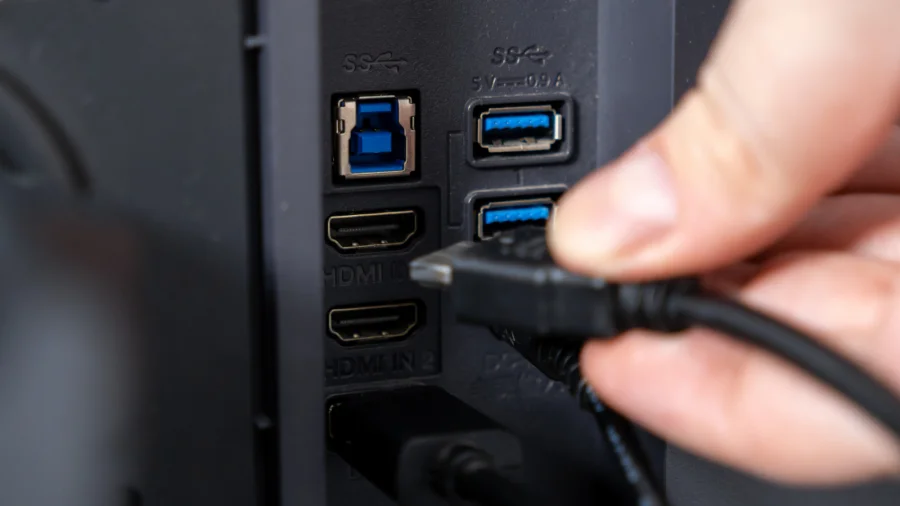
Look at the side or back of many modern monitors and you'll spot something odd: two USB ports sitting there, seemingly disconnected from anything. They aren't leftovers or extras. They're part of a small hub built into the monitor itself — and once you understand what they do, your desk setup can get noticeably cleaner.
What Those Two Ports Are Actually Doing There
Monitors with USB ports usually include a small internal hub. That hub connects to your computer through a single upstream cable — often USB-B or USB-C — and then splits the connection into two or more downstream ports on the monitor.
In simple terms: the monitor is acting as a middleman. Your PC sends data through one cable, and the monitor hands it out to whatever you plug into its side ports.
Why Monitor Makers Keep Adding Them
The logic is practical. Most laptops today ship with only two or three USB ports, and desktop towers are often tucked under a desk where reaching the back is awkward. Putting ports on the monitor — right at eye level and within arm's reach — solves both problems at once.
It also fits a broader shift toward single-cable desk setups, where one USB-C or Thunderbolt cable carries video, data, and power between a laptop and a monitor.
What You Can Safely Plug Into Them
Keyboards, mice, webcams, flash drives, and printers are the most common devices. These are low-power peripherals that work well through a monitor hub.
External SSDs and audio interfaces usually work too, though performance can vary depending on the monitor's USB generation. Older monitors may run USB 2.0 speeds, which are fine for input devices but slow for large file transfers.
Where the Confusion Usually Starts
Not all monitor USB ports behave the same way. Some are data-only. Others support charging, sometimes even when the connected laptop is asleep. A few are strictly for firmware updates or service use and won't pass data at all.
This is why the same two ports can feel useful on one monitor and useless on another. The manual — not the port shape — tells you what's actually supported.
How to Set Them Up Properly
Start by connecting the monitor's upstream USB cable to your computer. Without that link, the downstream ports won't do anything. Then plug your keyboard, mouse, or drive into the monitor's ports and check that your system recognises them.
If a device isn't detected, try a different port or cable. Some monitors only activate their hub when the upstream connection is USB 3.0 or higher.
Confirmed Facts vs What Remains Unclear
Confirmed: many monitors include USB ports as part of a built-in hub, and these ports are designed to host peripherals rather than replace a computer's own ports.
Unclear without checking your specific model: whether the ports support charging, what USB generation they use, and whether they stay active when the computer is off. These details vary widely between brands and price tiers.
Risks and Limitations Worth Knowing
A monitor hub shares bandwidth. Plug in too many high-demand devices — an external SSD plus a webcam plus a capture card — and performance can drop. Power delivery is also limited, so charging a phone or tablet through a monitor port may be slow or unreliable.
Cheap or older monitors sometimes ship with underpowered hubs that disconnect devices randomly. If that happens, a dedicated powered USB hub is usually the better fix.
The Bigger Trend Behind Those Two Ports
Monitor USB ports are part of a wider move toward cleaner, more integrated desks. Docking stations, USB-C monitors, and single-cable setups all aim at the same goal: fewer cables, less clutter, faster switching between work and personal devices.
As laptops get thinner and ports get scarcer, monitors are quietly absorbing some of that missing connectivity.
Practical Guidance for Readers
Check your monitor manual or the manufacturer's spec page before relying on those ports. Confirm the USB version, whether charging is supported, and whether the hub stays powered when your computer sleeps.
For most people, the best use is simple: keyboard, mouse, and a USB drive. Leave high-bandwidth or high-power devices connected directly to the computer.
Future Outlook
Expect more monitors to ship with USB-C upstream and multiple downstream ports, effectively turning displays into partial docking stations. The two-port layout may expand, but the core idea — offloading everyday peripherals to the monitor — is likely to stay.
Our Take
Those two USB ports look minor, but they reflect a real shift in how desks are built. They won't replace a proper dock, and they aren't a substitute for a computer's own ports. Used within their limits, though, they quietly remove a small daily annoyance — and that's often what good hardware design is about.
Frequently Asked Questions
Why does my monitor have two USB ports?
They're part of a built-in USB hub. The monitor connects to your computer through one upstream cable and shares that connection across its downstream ports.
Can I charge my phone through a monitor USB port?
Sometimes, but slowly. Charging support depends on the monitor model. Check the manual to confirm whether the port delivers power and how much.
Do monitor USB ports work without connecting to a PC?
Usually no. Most monitor hubs need an upstream connection to your computer before the downstream ports become active.
Are monitor USB ports as fast as my computer's ports?
Not always. Many monitors use older USB standards, so transfer speeds can be slower than a modern laptop's USB 3.2 or USB-C ports.