
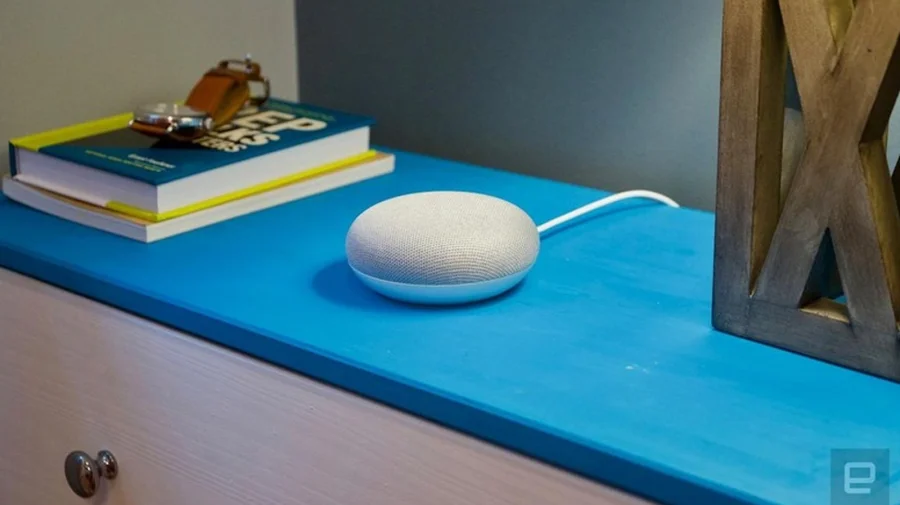
If there's a Google Home Mini gathering dust on your shelf, you're not alone. Google stopped selling the tiny speaker years ago, but millions are still plugged in across kitchens, bedrooms, and living rooms. And sooner or later, most owners face the same question: how do you wipe it clean?
Whether you're selling it, passing it to a family member, or fixing a stubborn Wi-Fi issue, a factory reset is the answer. Here's exactly how to do it — and what changes once you do.
Why a Discontinued Speaker Still Needs a Reset
The Google Home Mini was discontinued, but the hardware doesn't stop working. It still responds to voice commands, plays music, and controls smart lights. That's precisely why a reset matters.
Your device stores your Google account, Wi-Fi password, and voice match data. If you hand it to someone else without wiping it, that information stays on the device.
The Physical Button Method: The Only Reset That Works
Unlike phones, the Home Mini doesn't have a reset option buried in a settings menu. The reset happens on the device itself.
Flip the speaker over. On the bottom, near the power cable, you'll find a small circular button. Press and hold it for about 15 seconds.
You'll hear a chime, and the lights will flash. That's your signal the reset is underway. Release the button once the confirmation sound plays.
What Actually Gets Erased From Your Device
A factory reset removes your Google account link, saved Wi-Fi networks, personal preferences, and any voice match profiles tied to the device.
What it doesn't do is delete your Google account itself or any data stored in the cloud. Your music subscriptions, reminders, and Assistant history remain intact on your account — they're just no longer connected to this speaker.
When a Reset Is the Right Move — and When It Isn't
Reset if you're selling, gifting, or returning the device. Reset if it's stuck on a setup loop or refusing to connect to Wi-Fi after multiple attempts.
But don't reset as a first response to minor issues. A simple unplug-and-replug often fixes connectivity hiccups without wiping your settings.
Setting It Up Again After the Reset
Once wiped, the Home Mini behaves like a brand-new device. Open the Google Home app on your phone, tap the plus icon, and follow the setup prompts.
You'll need to reconnect it to Wi-Fi and sign in with a Google account. The whole process usually takes a few minutes.
Confirmed Facts vs What Remains Unclear
Confirmed: The physical button reset method works on Google Home Mini units, and Google's own support pages describe this approach for Home and Nest speakers.
Unclear: Google has not announced any end-of-life date for software support on the Home Mini. The device continues to function, but future Assistant updates may not reach it.
Risks and a Balanced View
A reset is safe, but it's not reversible. If you reset by accident, you'll need to set the device up from scratch.
There's also a practical concern: as the hardware ages, some units develop microphone or Wi-Fi issues that a reset won't fix. In those cases, the device may simply be near the end of its useful life.
The Bigger Picture: What Happens to Discontinued Smart Speakers
The Home Mini is part of a growing pile of discontinued smart home hardware. Google has shifted focus to newer Nest speakers, leaving older devices in a support grey zone.
For owners, that means the device works — until it doesn't. Resetting and reusing is a reasonable short-term move, but long-term reliance on discontinued hardware carries risk.
What You Should Do Right Now
If you're planning to sell or gift your Home Mini, reset it first. It takes less than a minute and protects your personal data.
If you're keeping it, note that a reset is your go-to fix for persistent connection problems. Bookmark the button method — you may need it again.
What Comes Next for Home Mini Owners
Google hasn't signaled when Assistant support for the Home Mini might end. For now, the device remains functional for basic tasks.
Owners should watch for changes in the Google Home app or official Nest support pages, which would indicate a shift in how older devices are handled.
Our Take
The Home Mini is a reminder that smart home hardware has a shorter shelf life than most people expect. A factory reset is a simple, useful skill — but it's also a sign that the device's best days are behind it.
If yours still works, keep using it. Just know how to wipe it clean when the time comes.
Frequently Asked Questions
How do I factory reset my Google Home Mini?
Flip the device over, press and hold the reset button on the bottom for about 15 seconds, and wait for the chime and flashing lights. The device will then restart in setup mode.
Does a factory reset delete my Google account data?
No. It only removes the device's link to your account, Wi-Fi details, and local settings. Your Google account and cloud data remain untouched.
Can I reset Google Home Mini without the button?
No. The Home Mini has no in-app reset option. The physical button on the bottom is the only way to perform a factory reset.
Is Google Home Mini still supported in 2025?
The device still works for basic Assistant and smart home tasks, but Google has discontinued sales and hasn't confirmed how long software support will continue.