You’ve been there: someone sends a QR code in a chat, you screenshot it, then you awkwardly hold your phone up to your other phone to scan it again. That clumsy two-device dance is finally over.
Both Android and iOS now let you scan QR codes directly from screenshots — no extra app, no second device, no retaking the photo. The feature has been quietly available for years, yet most users still don’t know it exists.
How Android Users Can Scan QR Codes From Screenshots
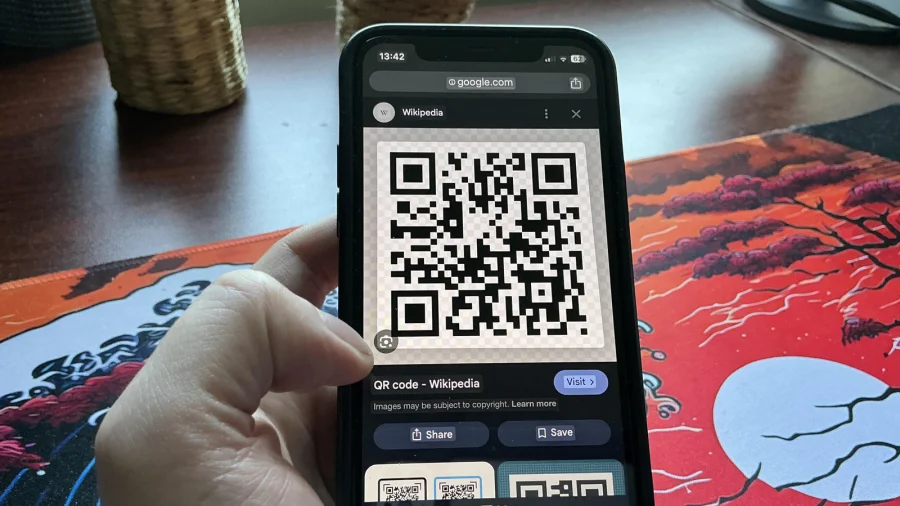
Android’s solution is Google Lens, which is baked into the Google app and Google Photos. If you have a screenshot with a QR code, open it in Google Photos, tap the Google Lens icon (a small square with dots), and the phone will automatically detect the QR code. A link will appear — tap it to open.
Alternatively, you can use the Google Assistant: long-press the home button or say “Hey Google,” then tap “Search screen” or take a screenshot. The Assistant will scan the image and offer to open the QR link. This works on most Android phones running Android 8 or later with the Google app installed.
How iPhone Users Can Scan QR Codes From Screenshots
Apple’s Live Text feature, introduced in iOS 16, handles this seamlessly. Open the screenshot in the Photos app, then tap and hold on the QR code itself. The phone will highlight the code and show a preview of the link. Tap the link to open it in Safari or your default browser.
Live Text works across the system — you can also use it in the Camera app, Safari, and even in third-party apps that support text selection. No extra setup is required; it’s enabled by default on iOS 16 and later.
Why This Feature Matters for Everyday Users
The convenience is obvious: no more switching between apps, no more retaking photos, no more hunting for a separate QR scanner. For professionals who receive QR codes in emails, documents, or messages, this saves seconds every time — and those seconds add up.
For students, it means quickly accessing assignment links or event registrations without leaving the chat app. For travelers, it means scanning boarding passes or hotel check-in codes from a screenshot taken earlier. The feature turns your photo gallery into a functional tool, not just a storage space.
Privacy and Security: What Happens to Your Screenshot
Both Google and Apple process QR code scanning on-device. For Android, Google Lens performs the scan locally; the image is not uploaded to Google’s servers unless you explicitly use Google Lens in the cloud mode (which is optional). For iOS, Live Text processes everything on the device using the Neural Engine — no data leaves your phone.
This is important for sensitive QR codes, such as those for payment links or personal documents. You can scan with confidence that the image stays private.
What If It Doesn’t Work? Troubleshooting Tips
If the feature isn’t working, check your software version. Android users need the Google app updated (version 12 or later) and Google Lens enabled. iOS users need iOS 16 or later. If the QR code is blurry, damaged, or too small, the scan may fail — try zooming in or taking a clearer screenshot.
Some older Android phones may not have Google Lens pre-installed. In that case, download the Google app from the Play Store. For iOS, Live Text is available on iPhone XS and later models (A12 Bionic chip or newer).
Confirmed Facts vs What Remains Unclear
Confirmed: Both Android (via Google Lens) and iOS (via Live Text) can scan QR codes from screenshots. The feature is built-in and requires no third-party app. Scanning is on-device for both platforms.
Unclear: Whether Google Lens will always detect QR codes in screenshots taken from third-party apps (like WhatsApp or Telegram) — it generally does, but edge cases exist. Also unclear: whether Apple will expand Live Text to scan QR codes from videos or live screenshots in future updates.
Wider Trend: The Death of Dedicated QR Scanner Apps
This feature is part of a broader shift: operating systems are absorbing functions that once required separate apps. QR scanning, document scanning, text recognition, and even translation are now built into Android and iOS. Dedicated QR scanner apps are becoming redundant for most users.
For developers, this means the market for simple utility apps is shrinking. For users, it means fewer apps to download and manage — a cleaner, more integrated experience.
Practical Reader Guidance: How to Start Using It Today
Android users: Open Google Photos, find a screenshot with a QR code, tap the Google Lens icon, and tap the link. Or use the Google Assistant: long-press home, then screenshot.
iOS users: Open Photos, find the screenshot, tap and hold the QR code, then tap the link. That’s it. No settings to change, no apps to install.
Future Outlook: What’s Next for QR Code Integration
Both Google and Apple are likely to deepen this integration. Future updates could allow scanning QR codes from videos, from live camera feeds without opening the Camera app, or even from images in third-party apps without needing to save the screenshot first.
For now, the feature works reliably and is available to billions of users. The only missing piece is awareness — most people simply don’t know it exists.
Our Take
This is a small feature with outsized impact. It eliminates a friction point that millions of users encounter daily. The fact that it’s built-in, private, and free makes it one of the most underrated productivity tools on modern smartphones. If you haven’t tried it yet, you’re wasting seconds every time you scan a QR code the old way.
Frequently Asked Questions
Can I scan a QR code from a screenshot on Android without Google Lens?
No. Google Lens is the only built-in method on Android. However, it comes pre-installed on most phones via the Google app or Google Photos. If you don’t have it, download the Google app from the Play Store.
Does iOS Live Text work with QR codes in videos?
Not directly. Live Text works on still images in Photos, Safari, and the Camera app. For videos, you can pause the video and take a screenshot, then scan the QR code from that screenshot.
Is it safe to scan QR codes from screenshots?
Yes, as long as you trust the source of the screenshot. The scan itself is processed on-device, so your image stays private. However, always verify the destination URL before tapping the link, especially if the QR code came from an unknown sender.
Do I need an internet connection to scan a QR code from a screenshot?
No. The scanning process happens on-device for both Android (Google Lens offline mode) and iOS (Live Text). You only need internet to open the link after scanning.