

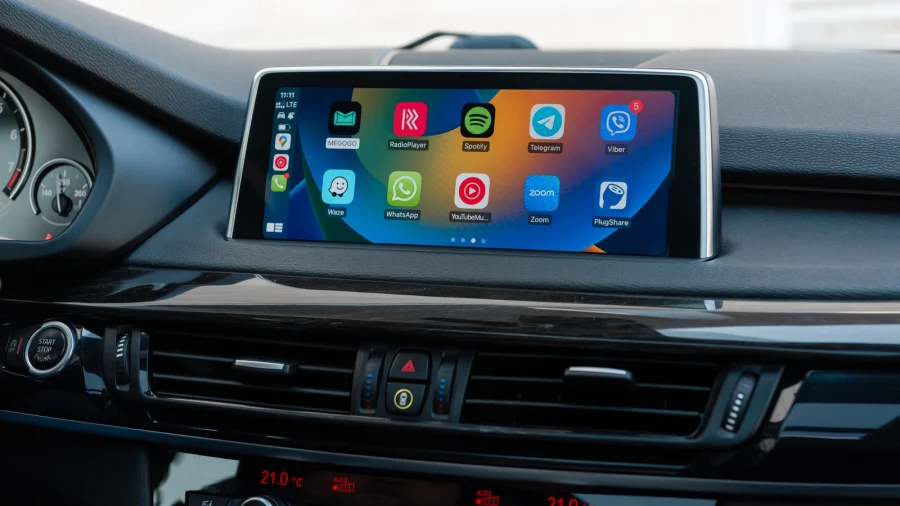
You press the voice command button on your steering wheel, and nothing happens. Or Siri pops up but doesn't hear you. Few things are more frustrating than a silent Siri when you're driving, especially when you need hands-free help.
Why Siri Goes Silent Inside Your Car
Siri on CarPlay usually fails for one of a few simple reasons. The most common culprit is a disabled Siri setting on your iPhone. If "Hey Siri" or "Press Side Button for Siri" is turned off, CarPlay won't respond to voice commands at all.
Another frequent issue is microphone permission. Your car's microphone system might not be properly connected, or the iPhone may be defaulting to the wrong audio input.
The Real-World Impact of a Broken Voice Assistant
When Siri fails, you lose more than convenience. You lose the ability to send texts, make calls, or change navigation while keeping your eyes on the road. This isn't just an annoyance—it's a safety feature that stops working when you need it most.
How the Problem Usually Develops
Most users report Siri working fine initially, then suddenly stopping after an iOS update or a change in Bluetooth settings. Sometimes, the issue appears after connecting a second phone to the car, which can confuse the system's audio routing.
Who Faces This Issue Most Often
Drivers with older iPhone models or vehicles with outdated infotainment software are more likely to hit this wall. However, even brand-new setups can glitch if the initial pairing wasn't completed correctly.
What Apple Says About the Problem
Apple's official guidance points to the Siri & Search settings in the iOS Settings app. The company also recommends checking that your vehicle is listed as a supported CarPlay model and that your iPhone is running the latest version of iOS.
Understanding the Technical Glitch
CarPlay relies on a stable connection between your iPhone and the car's head unit. When that connection is interrupted—even briefly—Siri's audio channel can drop. This is why a simple restart often resolves the issue.
Confirmed Fixes vs. What Remains Unclear
Confirmed: Checking Siri settings, restarting the iPhone, and re-pairing the car are verified solutions. Unclear: Whether a specific iOS version caused the issue for all users remains unconfirmed, as reports vary widely.
Step-by-Step: Getting Siri Back on the Road
Start by going to Settings > Siri & Search on your iPhone. Make sure "Listen for Hey Siri" and "Press Side Button for Siri" are both enabled. Then, check that your car's microphone is not muted and that the iPhone is selected as the audio source.
When Simple Fixes Aren't Enough
If Siri still won't respond, try forgetting the car in your Bluetooth settings and re-pairing it. You can also reset CarPlay by going to Settings > General > CarPlay and removing your car, then adding it again.
The Bigger Pattern: Voice Assistants and Driving
This issue highlights a broader trend: voice assistants are becoming essential for safe driving, but they still have reliability gaps. As more cars adopt CarPlay and Android Auto, automakers and tech companies face pressure to make these systems bulletproof.
What You Should Do Before Your Next Drive
Before you hit the road, test Siri while parked. If it works, you're good to go. If not, run through the settings checklist above. A quick five-minute check can save you from a frustrating drive.
What's Next for CarPlay and Siri
Apple's next-generation CarPlay promises deeper integration with vehicle controls, which could reduce these glitches. Until then, users will need to rely on manual troubleshooting.
Our Take
Siri on CarPlay is a powerful tool when it works, but its fragility is a reminder that even the best software has limits. The fixes are simple, but the fact that they're needed at all points to a larger issue: voice assistants still have a long way to go before they're truly seamless.
Frequently Asked Questions
Why is Siri not responding on CarPlay?
Siri may not respond on CarPlay if the Siri settings on your iPhone are disabled, the microphone is not working, or the Bluetooth connection is unstable. Check Settings > Siri & Search and ensure all toggles are on.
How do I fix Siri on CarPlay?
Start by restarting your iPhone and your car's infotainment system. Then, go to Settings > Siri & Search and enable all Siri options. If that fails, forget the car in Bluetooth settings and re-pair it.
Why is my microphone not working on CarPlay?
The microphone may not work if the car's audio system is not set to the correct input, or if the iPhone is not properly connected. Check your car's audio settings and ensure the iPhone is selected as the source.
Does CarPlay require Siri to be enabled?
Yes, Siri must be enabled for CarPlay to work fully. Many CarPlay features, including voice control and message reading, depend on Siri being active on your iPhone.