

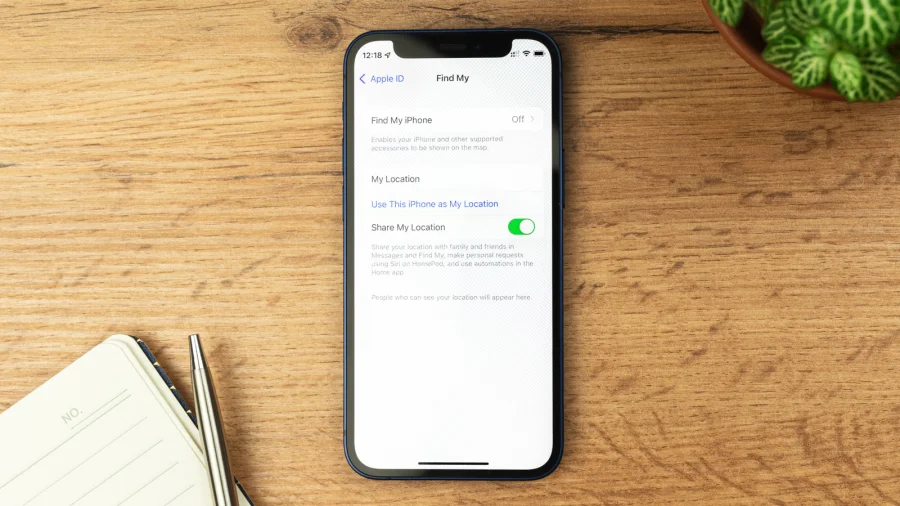
Your iPhone holds your photos, messages, banking apps, and a map of your daily life. Find My iPhone is the invisible shield that keeps all of that tied to you — and only you. But there are moments when you need to switch it off, and doing it wrong can cost you the device entirely.
The Only Times You Should Disable Find My iPhone
Find My iPhone should stay on for the life of your device. The only legitimate reasons to turn it off are when you are selling or trading in the phone, handing it to Apple for a repair, or resetting it to factory settings for a new owner. In each case, the feature must be disabled so the next person can set up the device as their own.
If you are not doing one of those things, turning it off is a security risk with no real benefit.
Step-by-Step: How to Turn Off Find My iPhone
The process takes less than a minute, but it requires your Apple ID password. Here is how to do it:
Open the Settings app on your iPhone. Tap your name at the very top of the screen. Then tap Find My, followed by Find My iPhone. You will see a toggle switch. Tap it to turn it off. The phone will ask for your Apple ID password to confirm. Enter it, and the feature is disabled.
If you are selling the phone, you should also go back to Settings, tap General, then Transfer or Reset iPhone, and choose Erase All Content and Settings. This removes your data and completes the process.
What Happens When You Turn It Off
Disabling Find My iPhone does two things at once. First, it stops sharing your device's location with your Apple ID. Second, it removes Activation Lock — the security layer that prevents anyone else from using your phone even if they have it in their hands.
Once Activation Lock is gone, a thief or a stranger who finds your phone can wipe it and set it up as their own. There is no way to track it, lock it, or erase it remotely after that point.
The Real-World Cost of Leaving It Off
Consider what happens if you disable Find My and then misplace your phone. You have no map to find it, no way to lock the screen, and no ability to wipe your data. Your photos, chats, and saved passwords are on that device with no remote control over them.
For most people, the risk is not worth the convenience. The feature costs nothing, drains negligible battery, and works silently in the background.
What Apple Says About Repairs and Trade-Ins
Apple's official service policy requires Find My to be turned off before any repair that involves replacing parts or servicing the device. The same applies to trade-ins at Apple Stores. If you bring in a device with Find My still active, staff will ask you to disable it before proceeding.
This is a security measure, not a formality. It ensures that a device brought in for service cannot be mistaken for a stolen one.
Why Activation Lock Matters More Than You Think
Activation Lock is the reason stolen iPhones are far less valuable on the black market than stolen Android phones. A locked iPhone is essentially a brick — it cannot be activated without the original owner's Apple ID and password.
When you turn off Find My iPhone, you are removing that brick status. The device becomes usable by anyone, which is exactly what you want when selling it — and exactly what you do not want in any other situation.
Confirmed Facts vs What You Should Double-Check
What is confirmed: Find My iPhone is located in Settings under your Apple ID, and disabling it requires your Apple ID password. What you should verify: whether your device is running the latest iOS version, as older versions may have slightly different menu paths. If you are unsure, check Apple's support page for your specific iOS version.
The Security Trade-Off No One Talks About
There is a reason Find My is on by default on every new iPhone. Apple designed it to be a permanent layer of protection, not a feature you toggle on and off. The company's own support documents describe it as essential to locating a lost device and protecting your information.
Leaving it off, even for a day, creates a window where your device is unprotected. If you must disable it for a repair, re-enable it the moment you get the phone back.
How This Fits Into the Bigger Privacy Picture
Find My is part of a broader shift in how smartphones handle security. Modern devices are no longer just communication tools — they are vaults of personal data. Features like Activation Lock, biometric authentication, and encrypted backups all work together to keep that data out of the wrong hands.
Turning off any one of these layers weakens the entire system. Find My is the only one that also helps you recover a physical device, not just protect the data on it.
What You Should Do Before Selling or Trading In
If you are about to sell your iPhone, follow this checklist. Back up your data to iCloud or a computer. Turn off Find My iPhone using the steps above. Sign out of your Apple ID entirely. Then erase all content and settings. Only after these steps is the phone ready for its next owner.
Skipping any of these steps can leave your personal data accessible to the buyer or lock the phone to your Apple ID permanently.
What Happens Next With Your Device
Once Find My is off and the phone is erased, the device is a blank slate. The new owner can set it up with their own Apple ID, and your connection to it is completely severed. If you are keeping the phone, simply toggle Find My back on and confirm with your password.
The entire process is reversible, but the consequences of leaving it off are not — a lost phone without Find My is gone for good.
Our Take
Find My iPhone is one of the few security features that works entirely in the background and asks nothing of you. It does not slow down your phone, interfere with apps, or require maintenance. It simply exists, ready to help if something goes wrong.
The decision to turn it off should never be casual. Make it only when you have a concrete reason — a sale, a repair, or a reset — and turn it back on as soon as that reason is gone. Your future self, frantically searching for a lost phone, will thank you.
Frequently Asked Questions
How do I turn off Find My iPhone without a password?
You cannot turn off Find My iPhone without your Apple ID password. Apple requires authentication to disable the feature as a security measure. If you have forgotten your password, you will need to recover it through Apple's account recovery process before you can disable Find My.
Will turning off Find My iPhone delete my data?
No. Turning off Find My iPhone does not delete any of your data. It only disables location tracking and Activation Lock. Your photos, messages, and apps remain on the device. To erase data, you must use the Erase All Content and Settings option separately.
Can I sell my iPhone with Find My still on?
Technically you can, but the buyer will not be able to activate the phone without your Apple ID password. The device will remain locked to your account. Always turn off Find My and erase the device before selling to ensure a smooth transfer.
Does Find My iPhone drain battery?
Find My iPhone uses very little battery in normal use. It relies on low-power location updates and does not run continuously in the background. The security benefit far outweighs the negligible impact on battery life.