

The moment a new iPhone arrives, excitement quickly meets one nagging question: how do you get everything from your old device to the new one without losing anything important? Apple's Quick Start feature was built to answer exactly that — and it makes the process far simpler than most people expect.
What Quick Start Actually Does
Quick Start is Apple's built-in migration tool that activates the moment you power on a new iPhone and place it near your current one. The feature detects the nearby device and prompts you to set up the new phone using your Apple ID.
Once connected, Quick Start handles the heavy lifting — transferring your apps, photos, messages, settings, and even your home screen layout. For most users, the entire process completes in under 30 minutes, depending on how much data you have stored.
Why This Matters for Anyone Upgrading
Switching phones has historically been a stressful ritual. Older methods required backing up to iCloud or iTunes, then restoring — a process that could take hours and occasionally fail midway. Quick Start eliminates those steps entirely.
For Indian users especially, where mobile data can be expensive and Wi-Fi connections unreliable, the ability to transfer directly between devices without uploading to the cloud is a significant advantage. Everything stays on-device, which also means better privacy.
How the Transfer Process Works Step by Step
The process begins when you turn on your new iPhone and bring it close to your old one. A setup animation appears on the new device, and your old iPhone prompts you to confirm that you're setting up a new device.
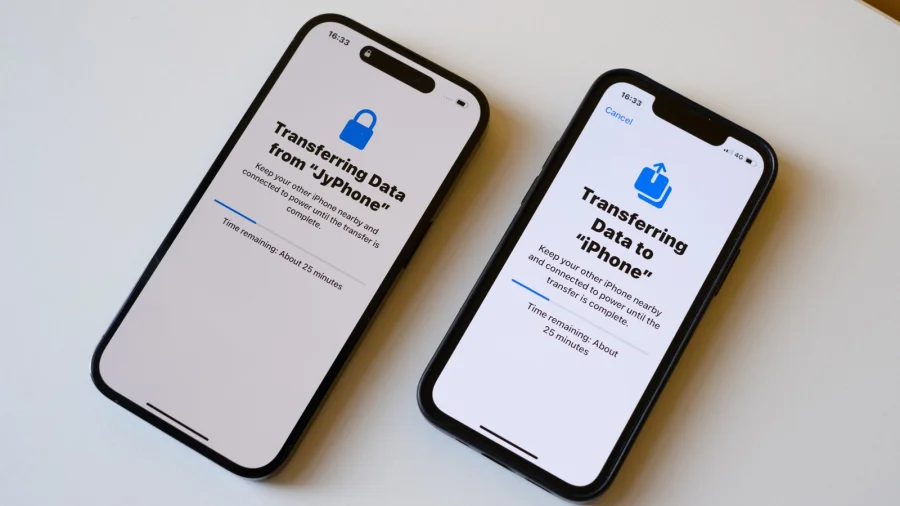
From there, your old iPhone scans a glowing animation on the new screen to establish a secure connection. You'll then be asked to enter your Apple ID password and set up Face ID or Touch ID. The transfer begins automatically, and both devices show a progress bar.
What Transfers and What Doesn't
Quick Start moves the essentials: contacts, call history, messages, photos, videos, apps, and most settings. It also carries over your wallpaper, ringtones, and even your Wi-Fi passwords.
However, some things require manual attention. Banking apps and services using two-factor authentication may need you to re-login. Apple Pay cards must be re-added. And any data stored exclusively in third-party cloud services — like Google Photos or WhatsApp backups — will need to be restored separately through those apps.
Apple's Approach to Making Migration Effortless
Apple has long positioned device switching as a frictionless experience. Quick Start is part of a broader ecosystem strategy where hardware, software, and services work together seamlessly. The company's focus on privacy also means the transfer happens directly between devices, not through Apple's servers.
This approach contrasts sharply with Android's migration tools, which often require USB cables or cloud backups. Apple's wireless solution is deliberately simple — designed for users who want to spend minutes, not hours, setting up a new phone.
What to Do If Quick Start Doesn't Work
Occasionally, Quick Start may fail to trigger — usually due to Bluetooth issues or outdated software. If that happens, ensure both iPhones are running the latest iOS version and that Bluetooth is enabled on both devices.
If the problem persists, Apple offers alternatives: iCloud backup restore, Finder (on Mac) or iTunes (on Windows) wired transfer, and the "Move to iOS" app for Android switchers. Each method works, but Quick Start remains the fastest and most convenient option.
Confirmed Facts vs What Remains Unclear
Confirmed: Quick Start works on iOS 11 and later, transfers data wirelessly, and requires both devices to be near each other. Apple officially documents this feature in its user guides.
Unclear: Exact transfer speeds vary based on data volume and device age. Apple does not publish specific time estimates, and individual results will differ depending on Wi-Fi conditions and storage size.
Risks and Balanced View
Quick Start is reliable, but it's not without limitations. Large transfers — particularly for users with 200GB or more of photos and videos — can take over an hour. During this time, both devices must remain powered and close together.
There's also the risk of interruption. If either phone loses power or the connection drops mid-transfer, you may need to restart the process. Apple advises keeping both devices plugged in during migration to avoid this scenario.
The Bigger Picture: Why Seamless Migration Matters
Phone upgrades are emotional moments. The fear of losing years of photos, messages, and memories is real. Quick Start addresses that anxiety directly, making the transition feel less like a technical chore and more like a natural continuation of your digital life.
As smartphones become increasingly central to identity — holding our banking, health data, and personal archives — the ability to move between devices without friction is no longer a luxury. It's an expectation.
Practical Guidance for Your Next Upgrade
Before you begin, back up your old iPhone to iCloud as a safety net. This ensures you have a fallback if anything goes wrong during the transfer. Also, make sure both devices have at least 50% battery or are plugged into power.
Once the transfer completes, spend a few minutes checking critical apps. Log into your banking apps, verify WhatsApp chats restored correctly, and confirm that your photos are all present. A quick checklist now saves frustration later.
What's Next for iPhone Data Migration
Apple continues to refine its migration tools with each iOS release. Future updates may bring faster transfer speeds and even more comprehensive data coverage. For now, Quick Start remains the gold standard for moving between iPhones.
If you're planning an upgrade, the process has never been easier. Place your old iPhone next to your new one, follow the prompts, and let Apple handle the rest.
Our Take
Quick Start is one of those Apple features that quietly solves a real problem without demanding attention. It's not flashy, but it saves users from one of the most stressful parts of upgrading. For anyone switching to a new iPhone, it's the first thing to try — and for most people, it will be the only thing they need.
Frequently Asked Questions
How long does it take to transfer data from old iPhone to new iPhone?
Most transfers complete in 15 to 30 minutes, but larger data volumes can take over an hour. The duration depends on your storage size and Wi-Fi connection quality.
Do I need iCloud to use Quick Start?
No. Quick Start transfers data directly between devices over a peer-to-peer Wi-Fi connection. iCloud is not required, though having a backup as a safety net is recommended.
Will Quick Start transfer my WhatsApp chats?
WhatsApp chats are not included in the standard transfer. You'll need to use WhatsApp's built-in chat backup feature to restore your conversations on the new device.
Can I use Quick Start if my old iPhone has an older iOS version?
Quick Start requires iOS 11 or later on both devices. If your old iPhone runs an older version, update it first or use an alternative method like iCloud restore.